Turn an empty stadium into a packed crowd with AI VFX
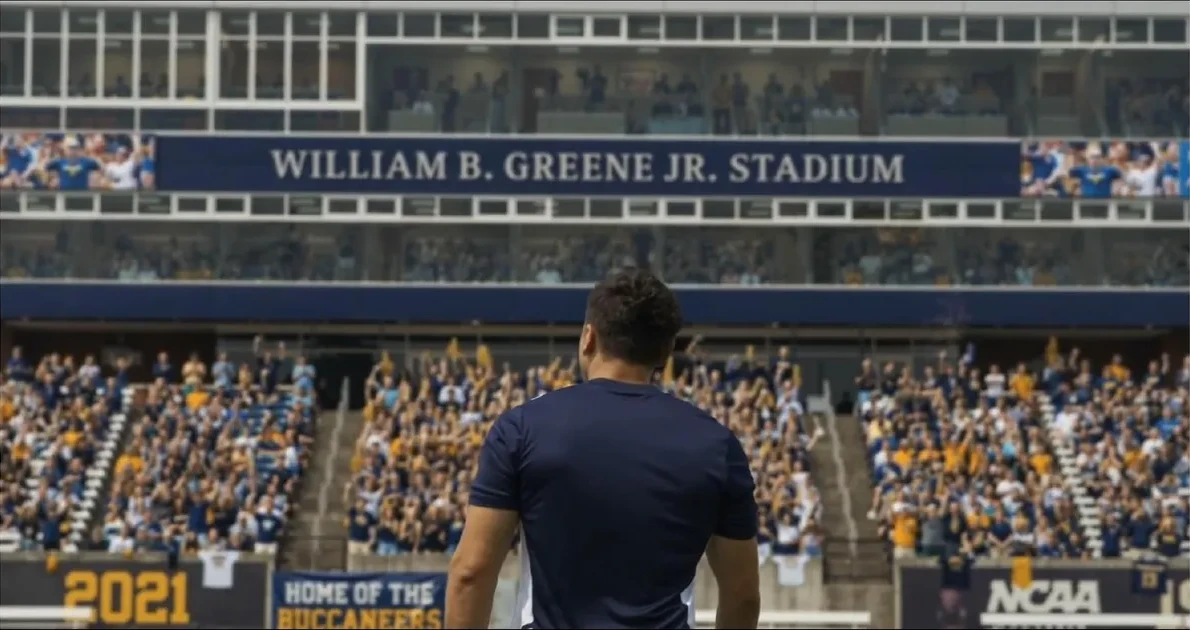
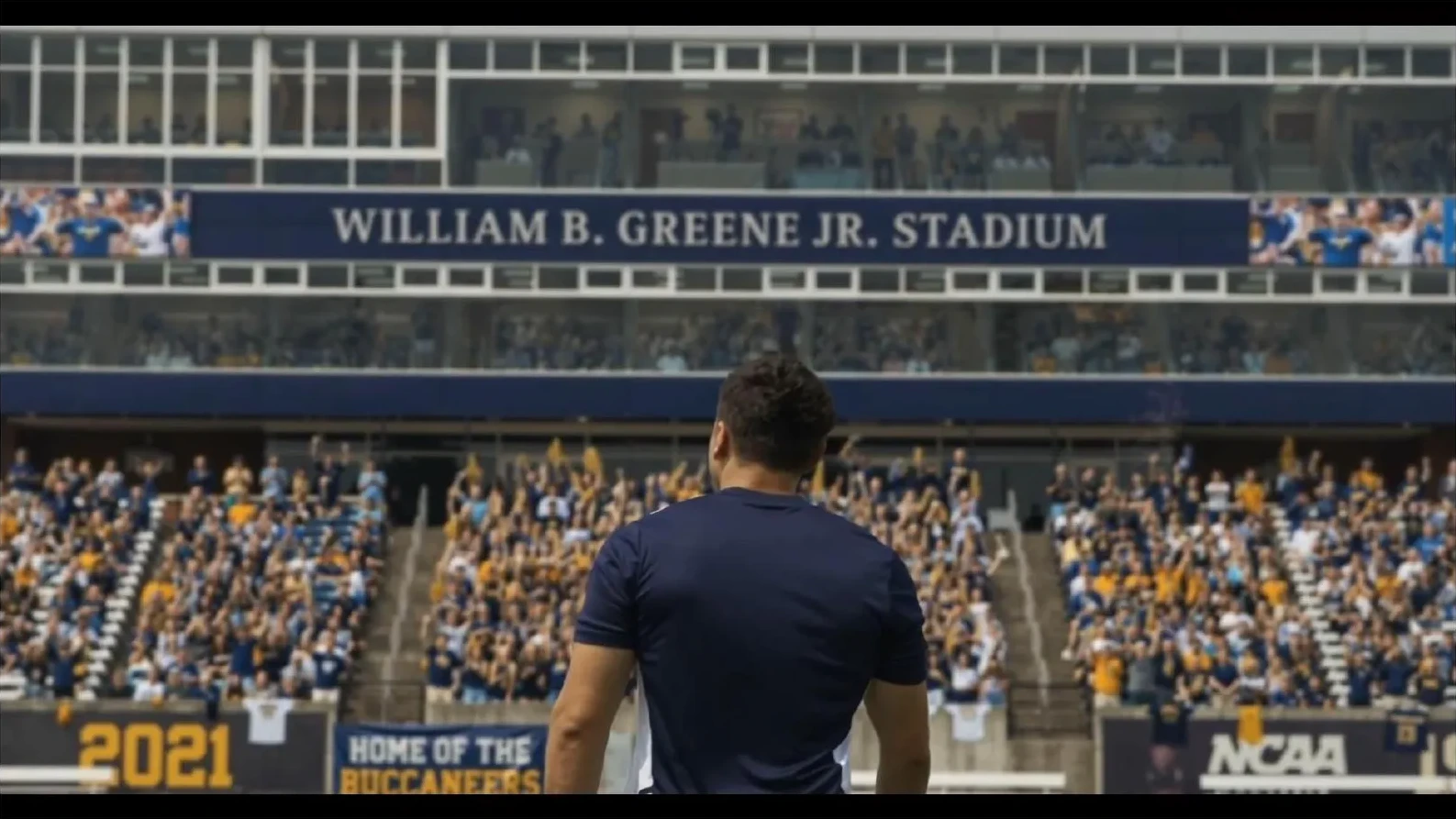
Creating a convincing stadium crowd has traditionally required significant resources. Productions often rely on hundreds of extras, crowd replication techniques, green screen shoots, or extensive visual effects to create the feeling of a live event.
In this Beeble Canvas tutorial, we transform an empty stadium into a packed venue using generative AI, compositing, and SwitchX. The result is a shot that feels like it was captured during a live match.
Watch the tutorial
Practice footage provided by ActionVFX.
Starting with an empty stadium
Our goal is to add a large, active crowd to the stands while preserving the original player, camera work, and overall visual style.
The workflow is built around three stages: generating a crowd-filled background, isolating the player, and using SwitchX to match the final composite back to the original footage.
Step 1: Generate the crowd background
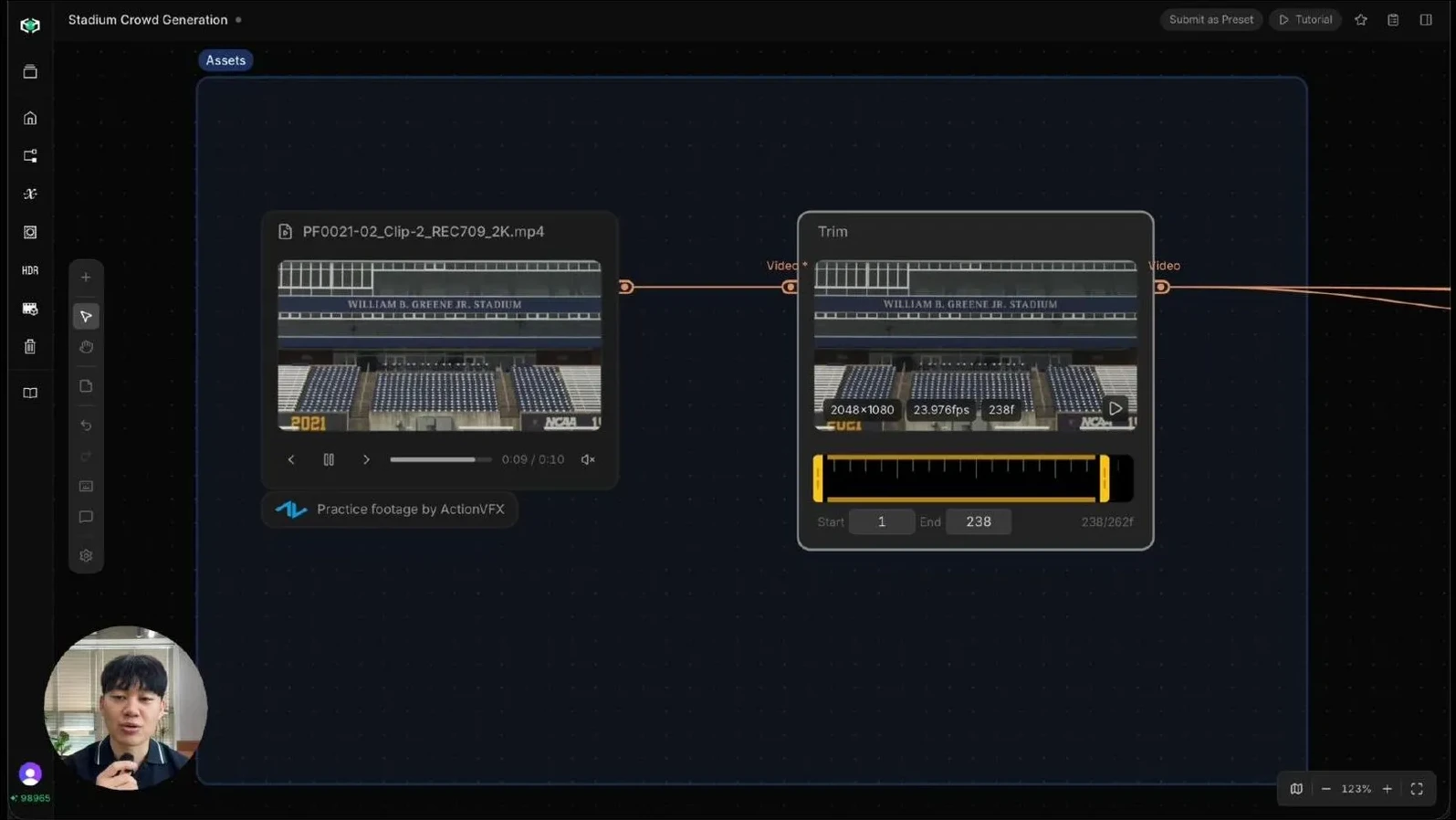
We begin by trimming the shot to 238 frames and extracting the first frame. This frame gives us a clean view of the empty stadium before the player enters the scene.
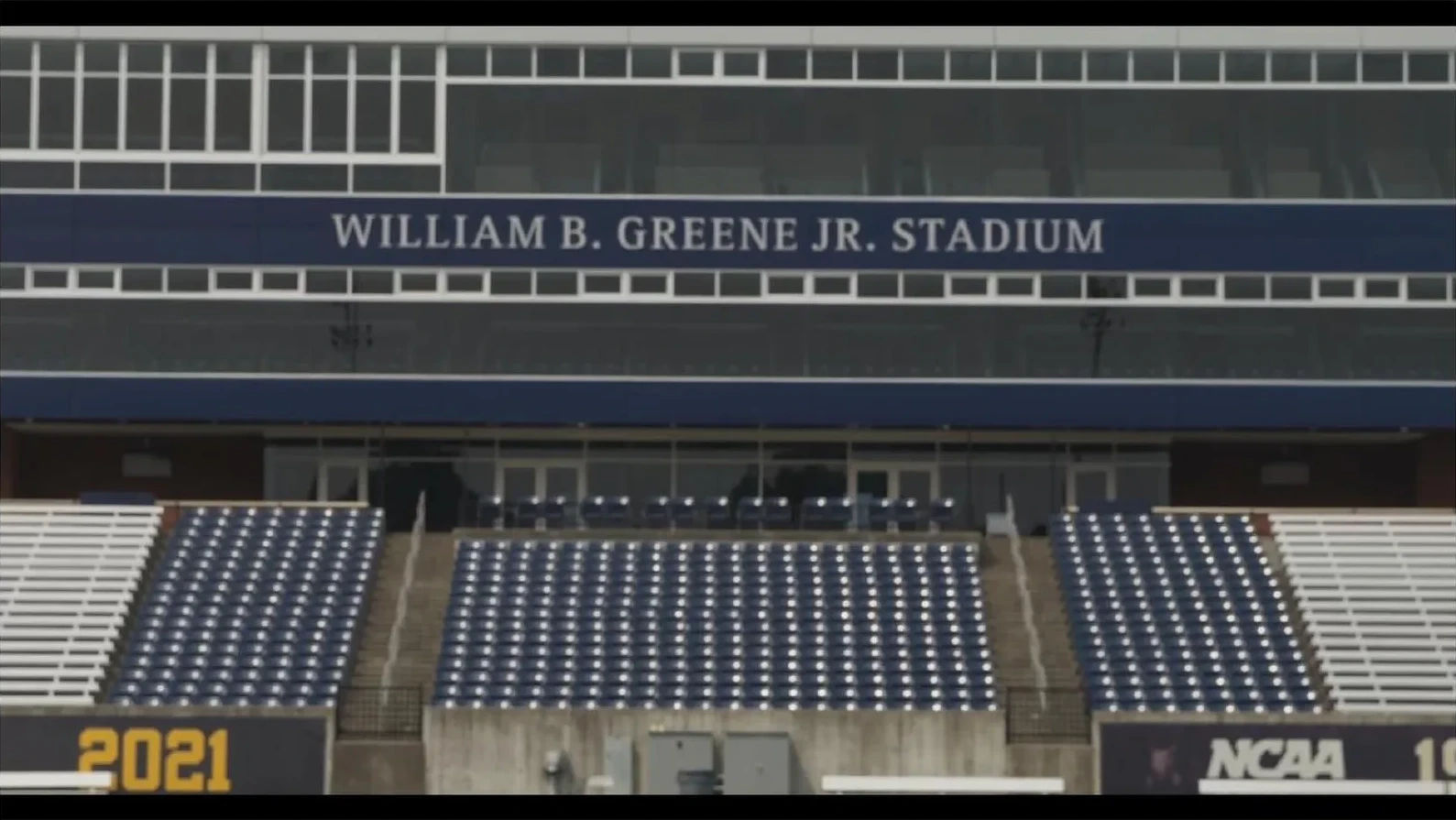
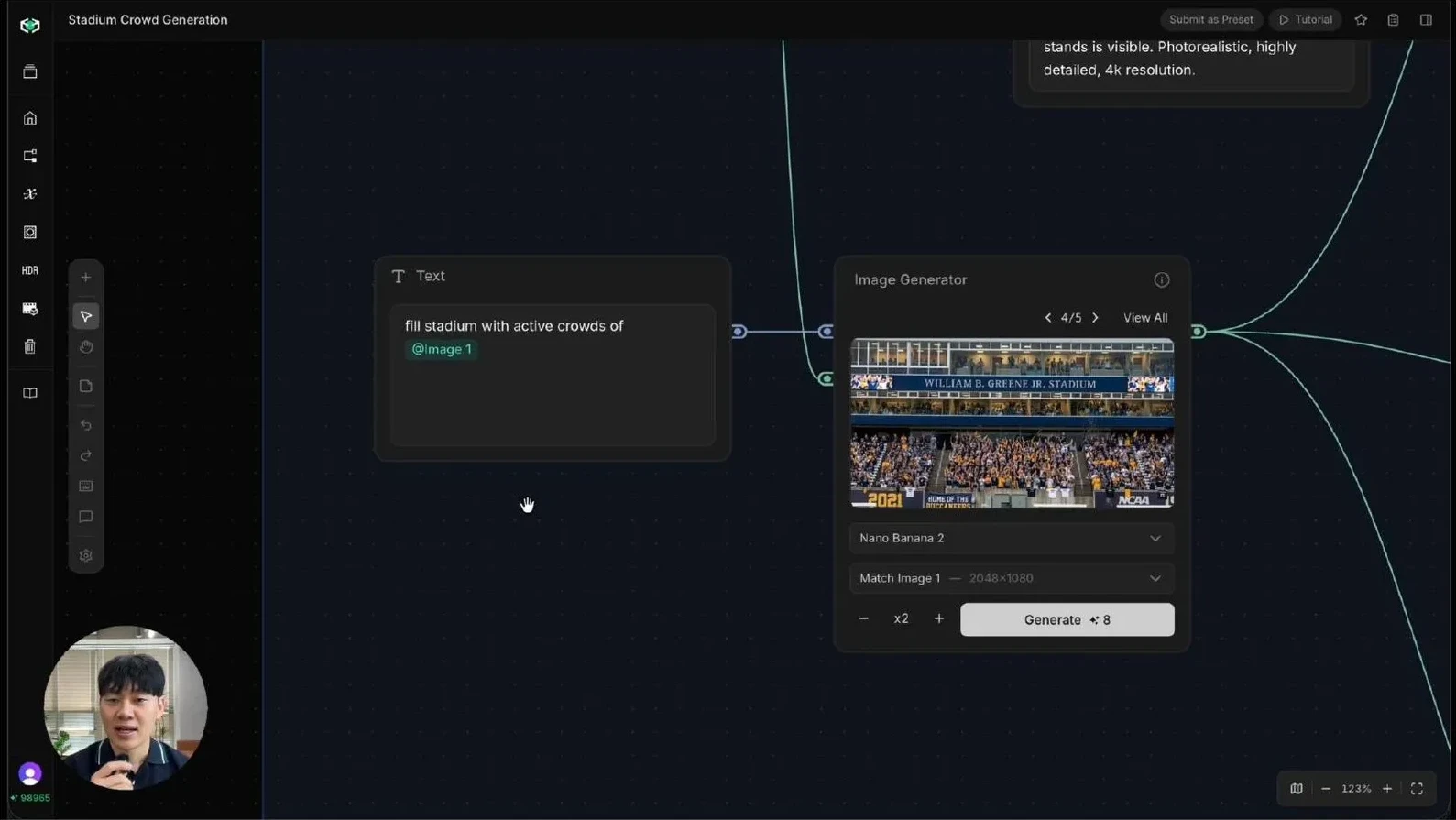
Using Nano Banana with an Image Generator node, we generate multiple versions of the frame with the stadium filled with active crowds.
After reviewing the results, we select the strongest crowd-filled image and use it as the foundation for the next step.
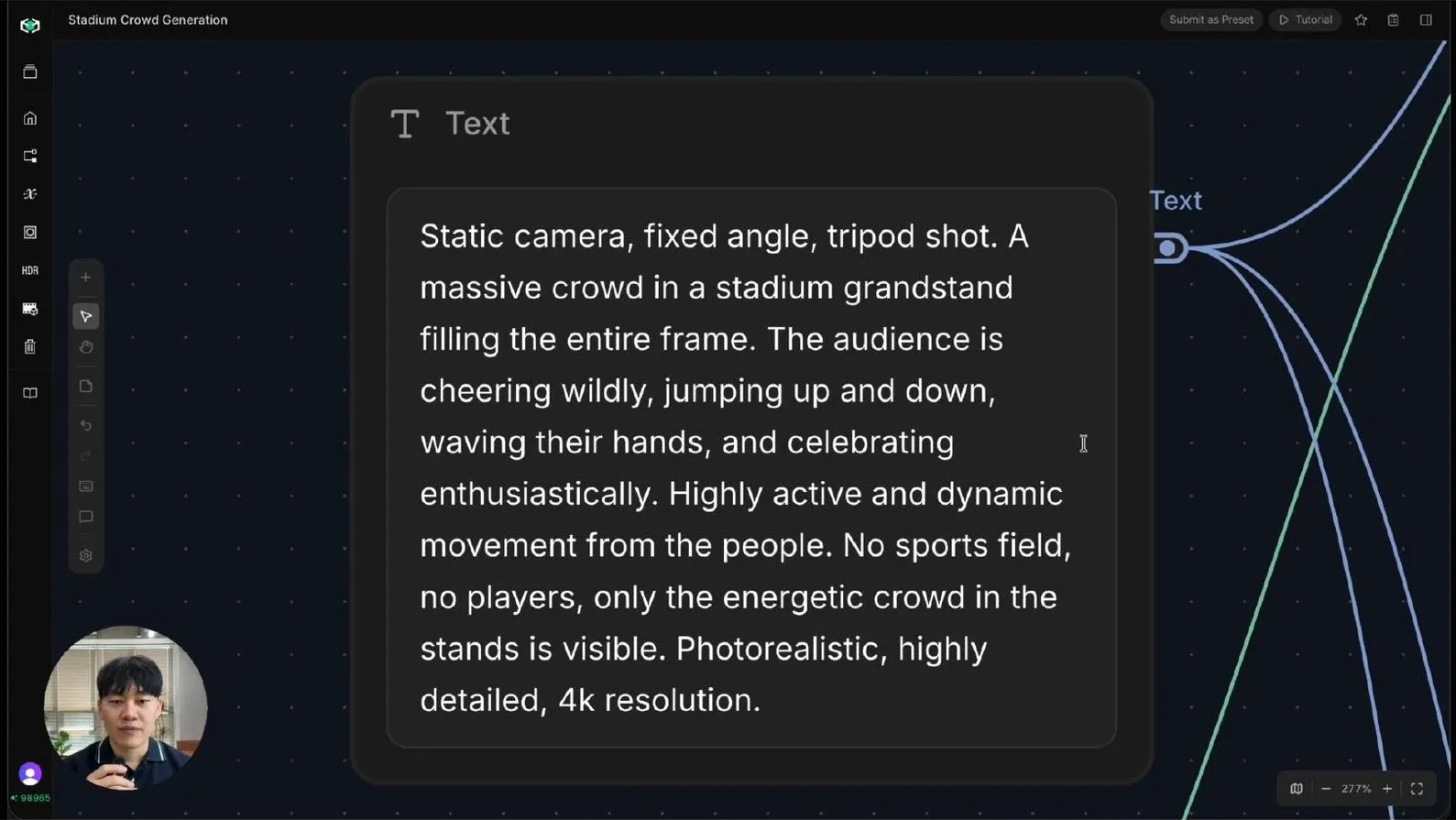
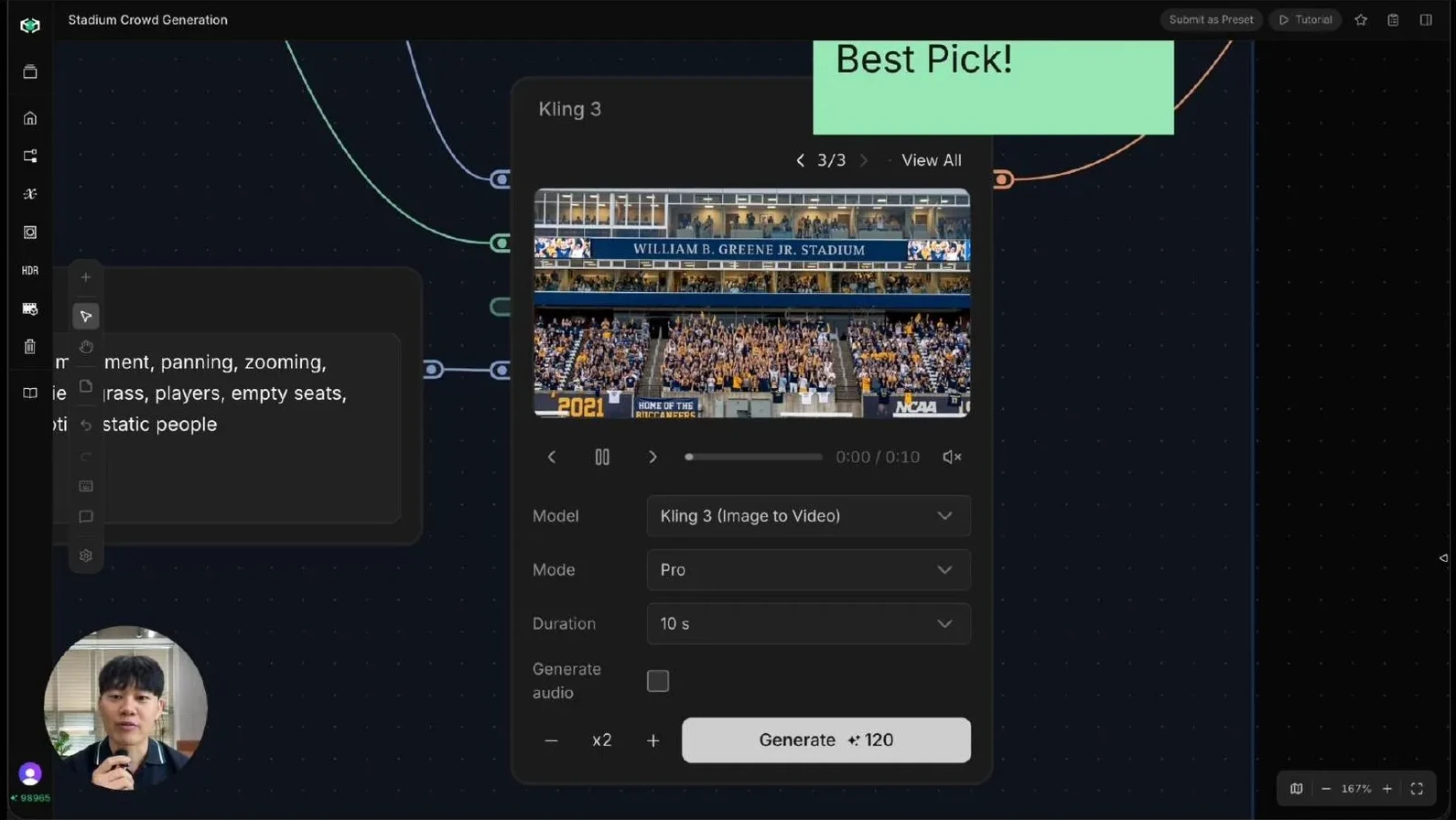
To bring the scene to life, we extend the image into video using Image-to-Video models. We test three different options: Seedance 2.0, Happy Horse, and Kling 3.0. Across all three models, we use a prompt that asks for a static, fixed-angle tripod shot, a massive cheering crowd filling the stadium, no players introduced into the scene, and a photorealistic 4K look.
Each model produces a slightly different interpretation. Seedance and Happy Horse both deliver strong results, but Kling 3.0 produces the most convincing crowd movement and becomes our final background plate.
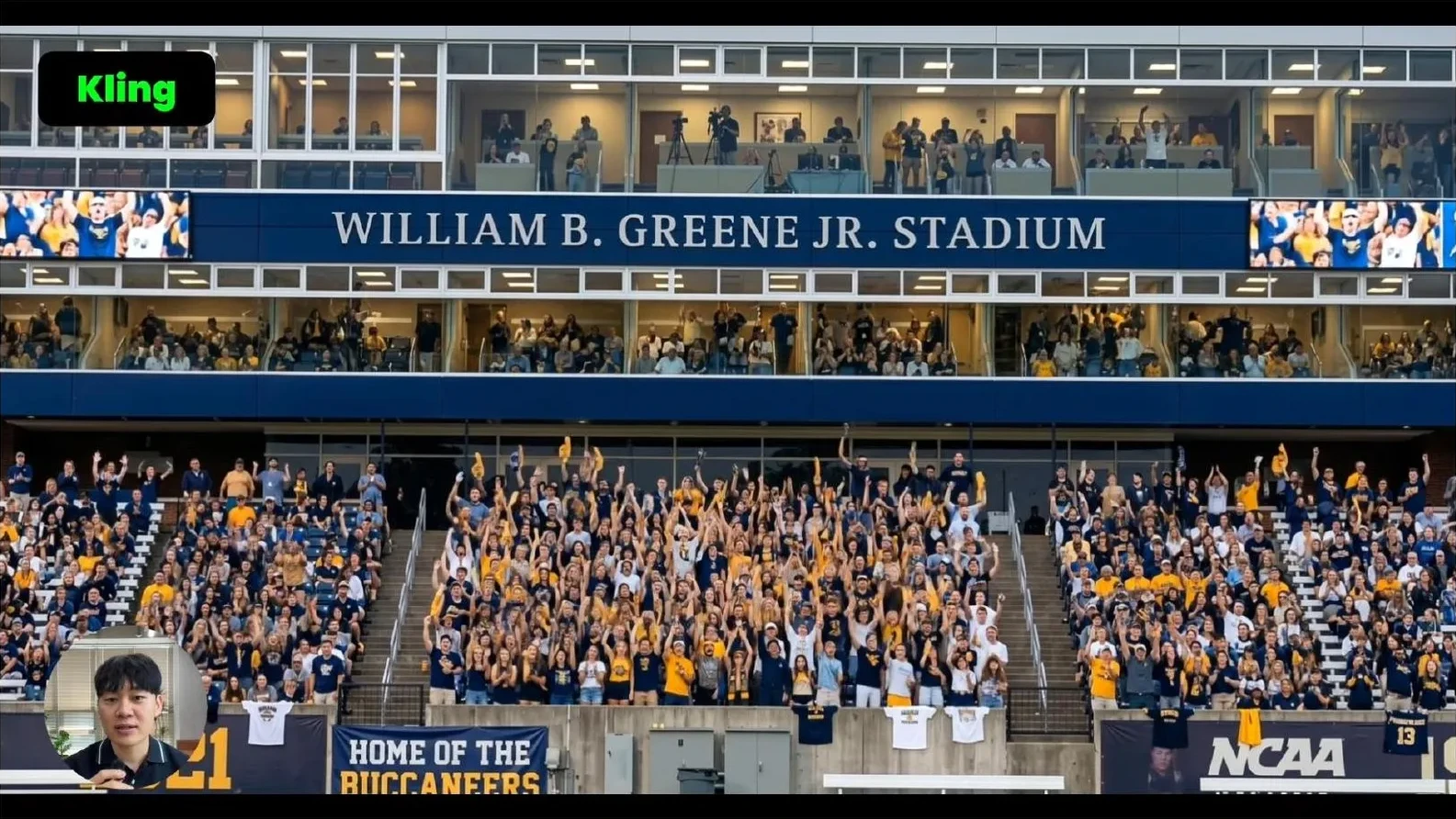
At this point, we have transformed an empty stadium into a packed, energy-filled venue.
Step 2: Isolate and composite the football player
With the crowd background ready, the next task is to bring the football player back into the shot. Because the player is not visible in the opening frame, Auto Mode in Video Matte is not the right choice. Instead, we use Select Mode and open the Smart Select tool.
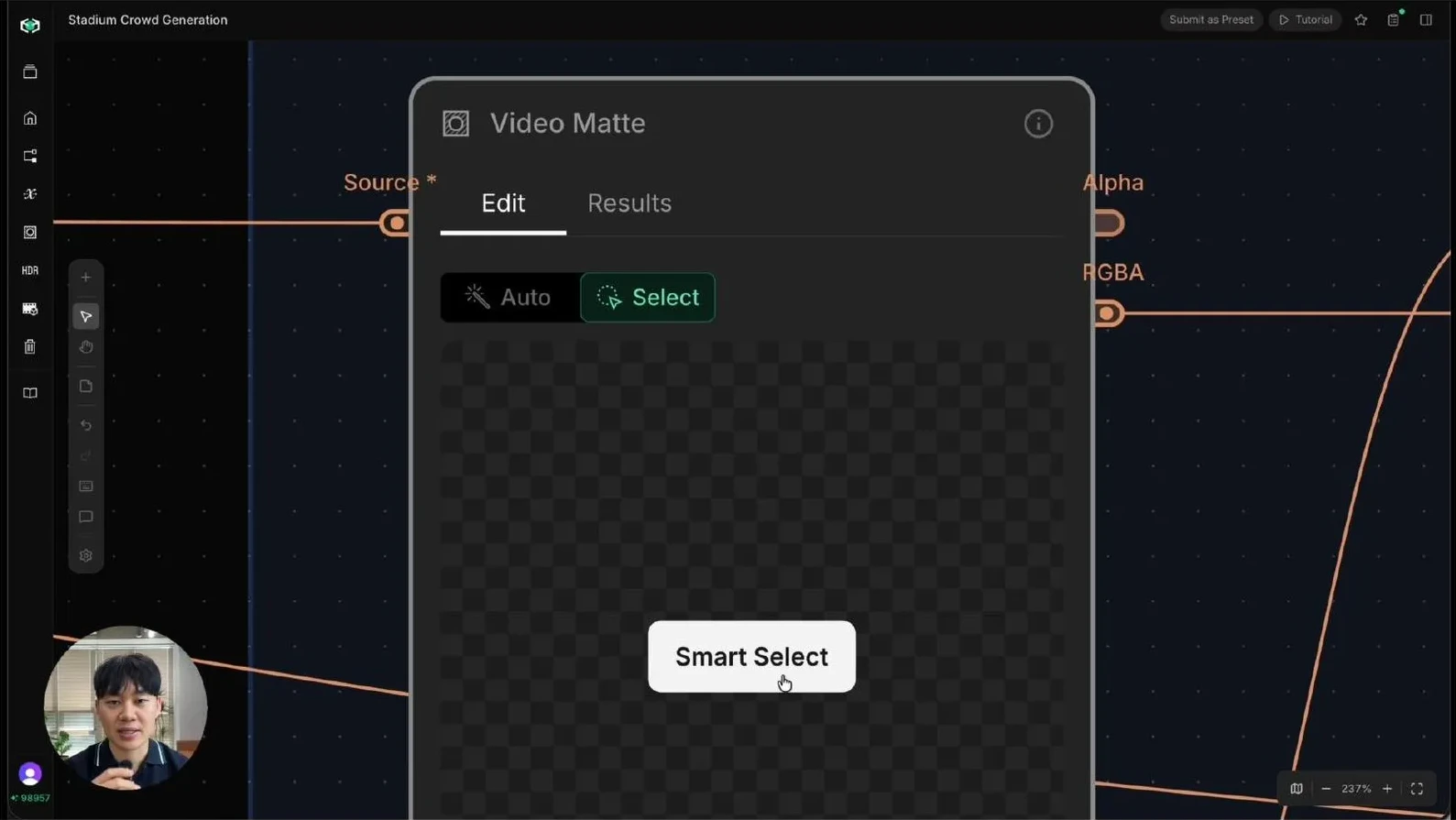
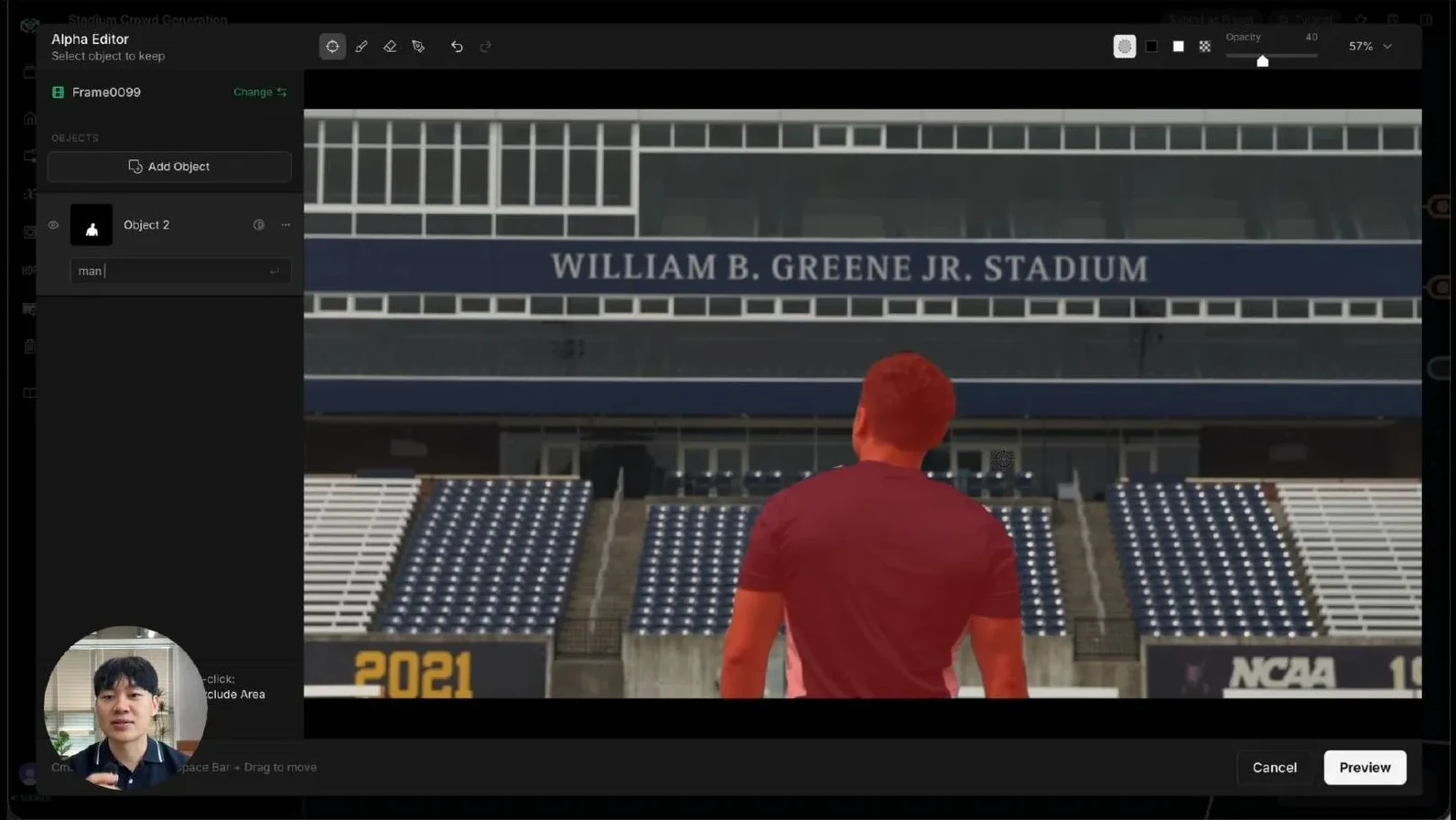
We move to frame 99, where the player is clearly visible, and simply type "man" to select the football player. Video Matte then propagates that selection throughout the entire clip, isolating the player even though the footage was never shot on a green screen.
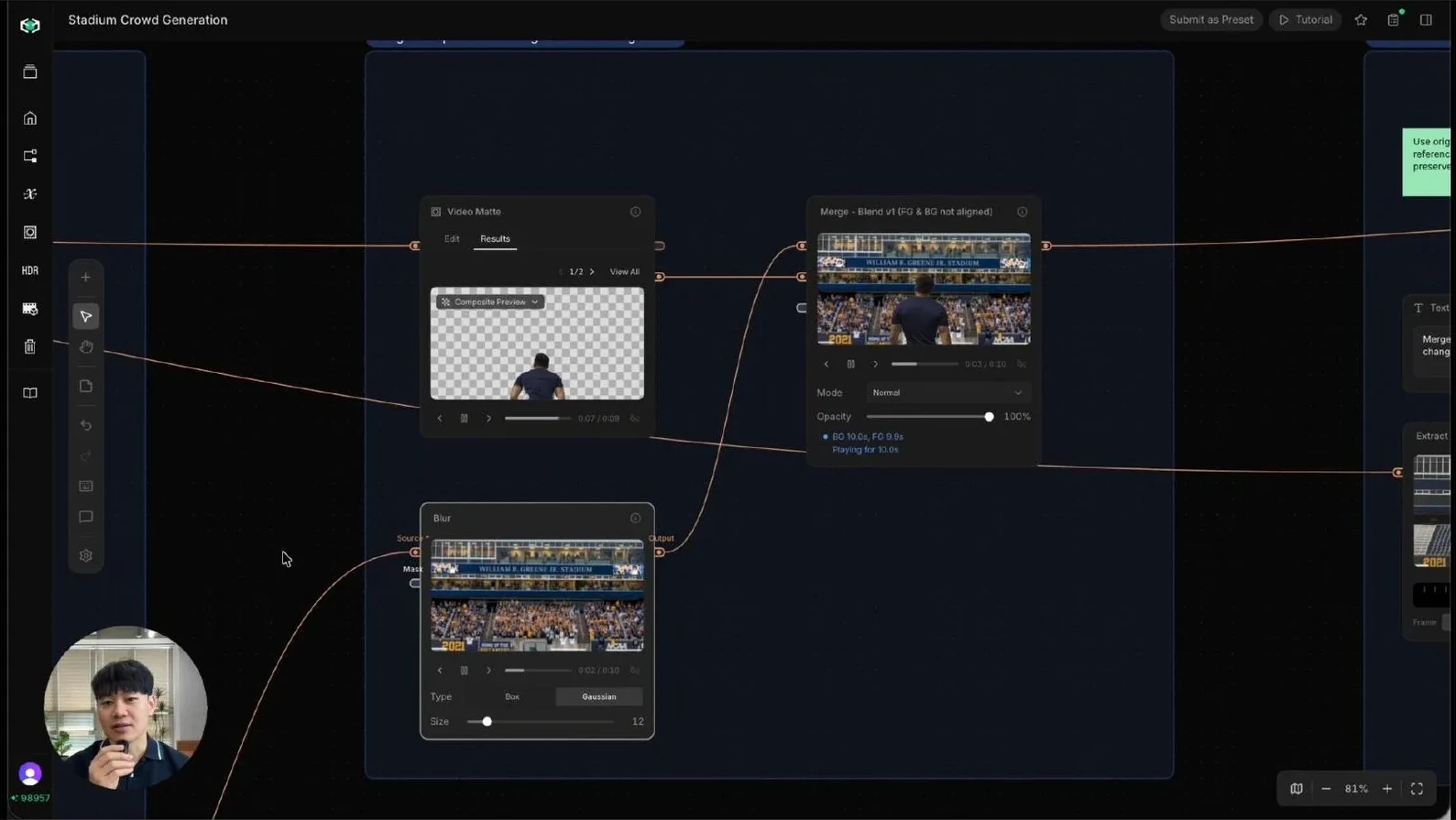
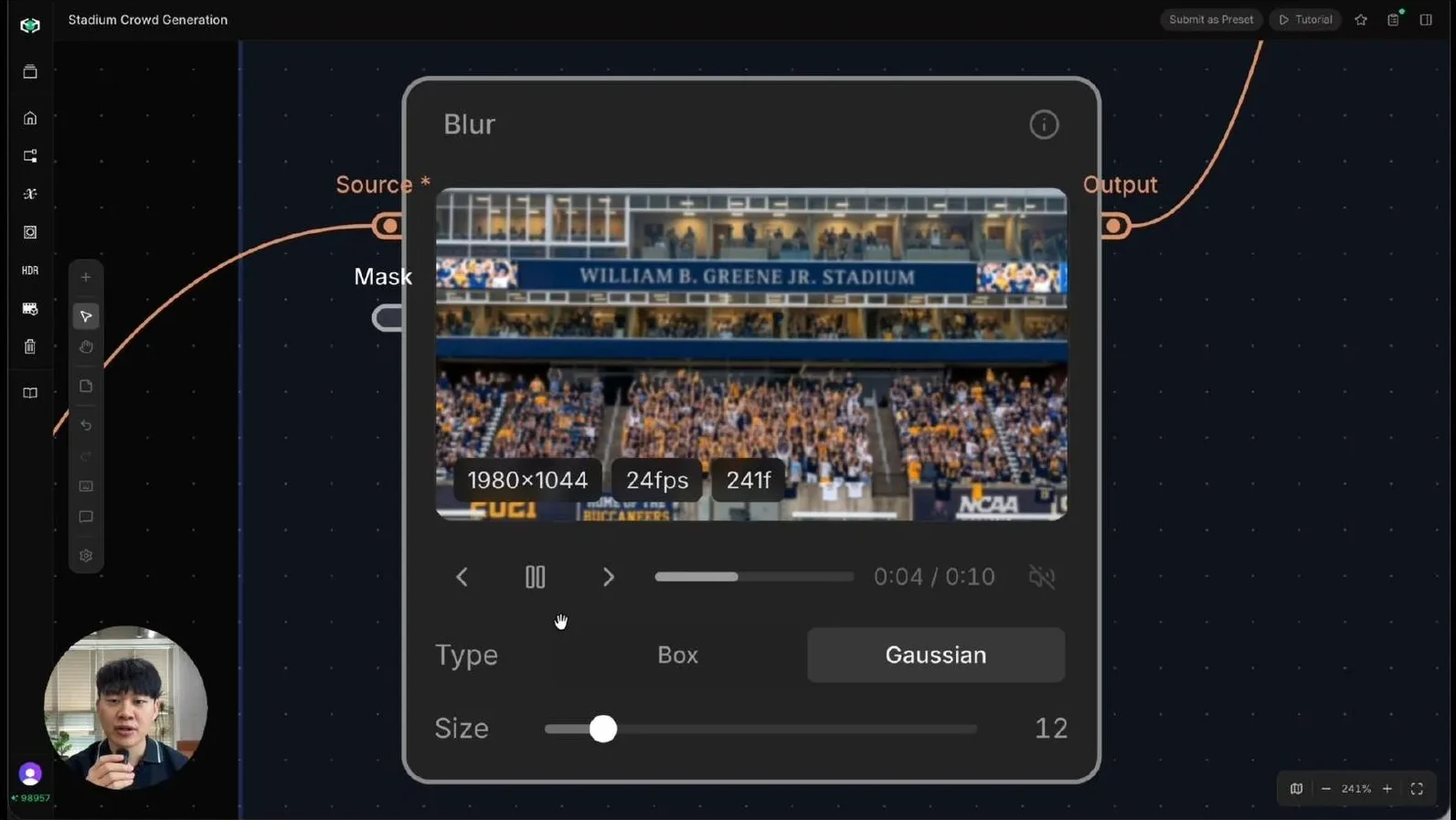
To help the composite feel more natural, we add a small amount of blur to the player layer before merging it with the generated stadium background.
Using a Merge node, we place the isolated player over the crowd-filled stadium.
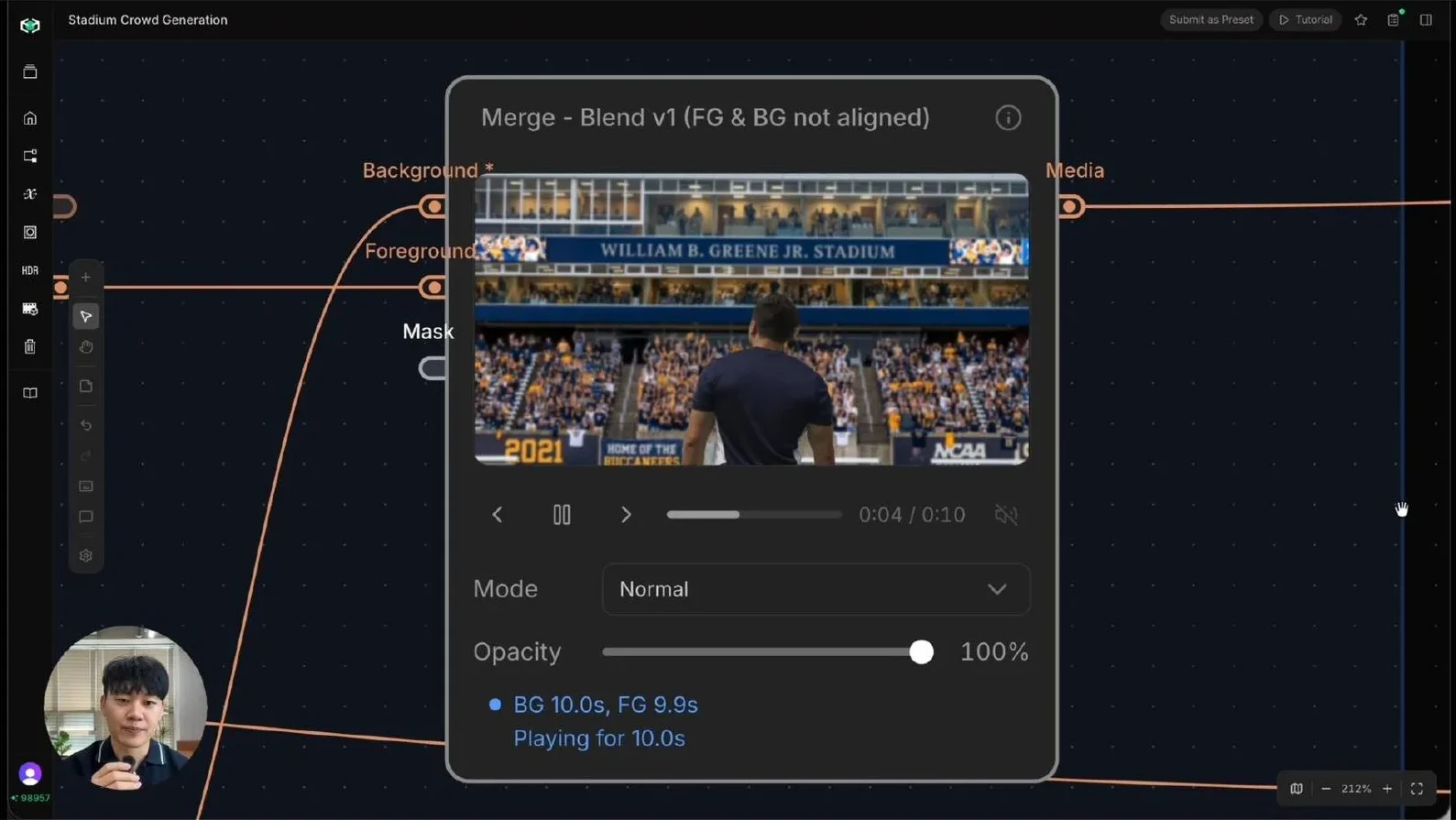
The scene immediately begins to feel larger in scale, while preserving the original performance and camera movement.
Step 3: Match the final shot with SwitchX
At this stage, the composite is working, but the color and tone still feel disconnected from the original footage.
The generated stadium background appears cooler, bluer, and more contrasty than the source video. To bring everything back into the visual language of the original shot, we render the final composite through SwitchX.
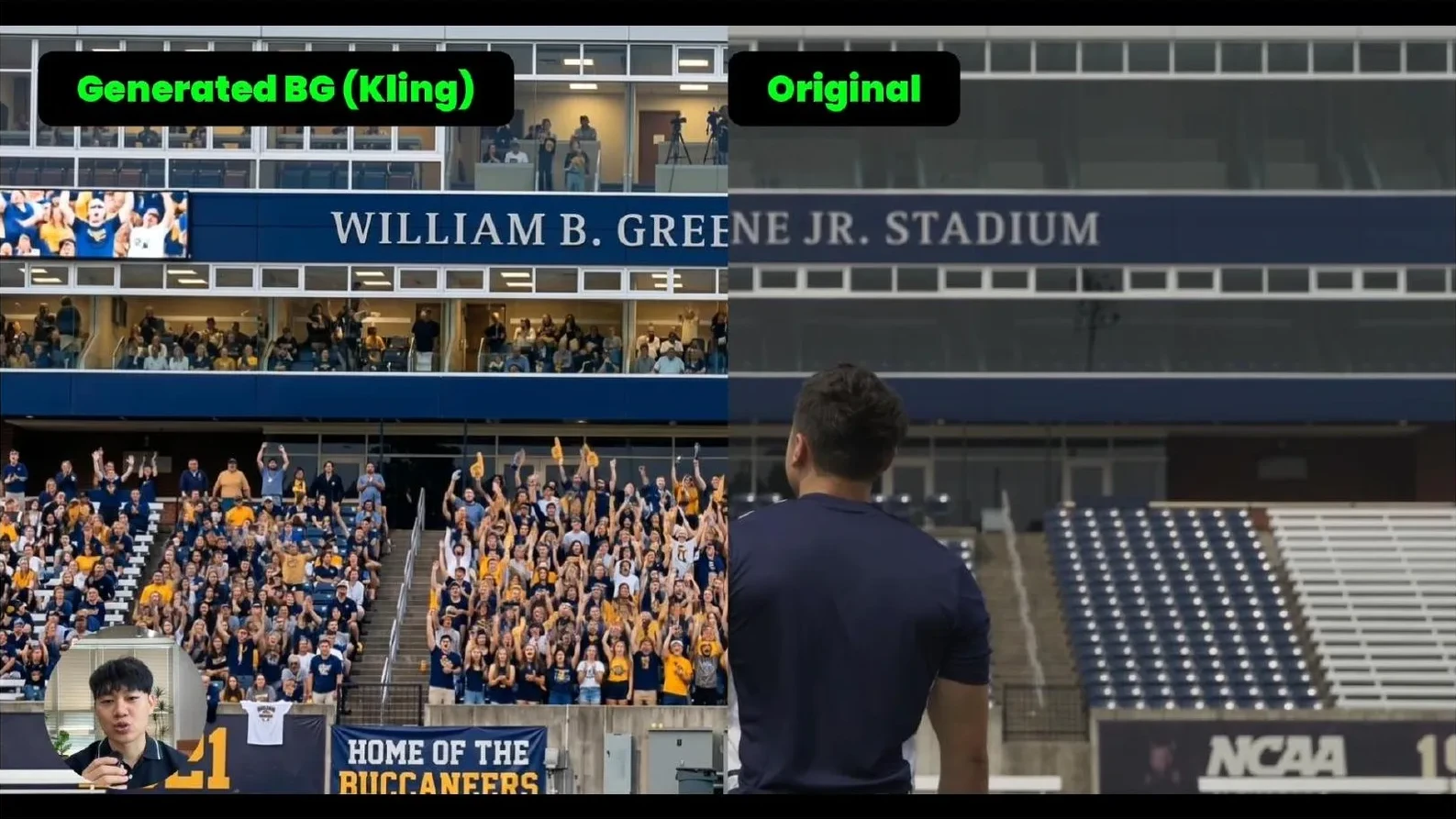
We select a reference frame from the original footage where both the stadium and the player are visible and send it to SwitchX.
Importantly, we leave the alpha mask empty.
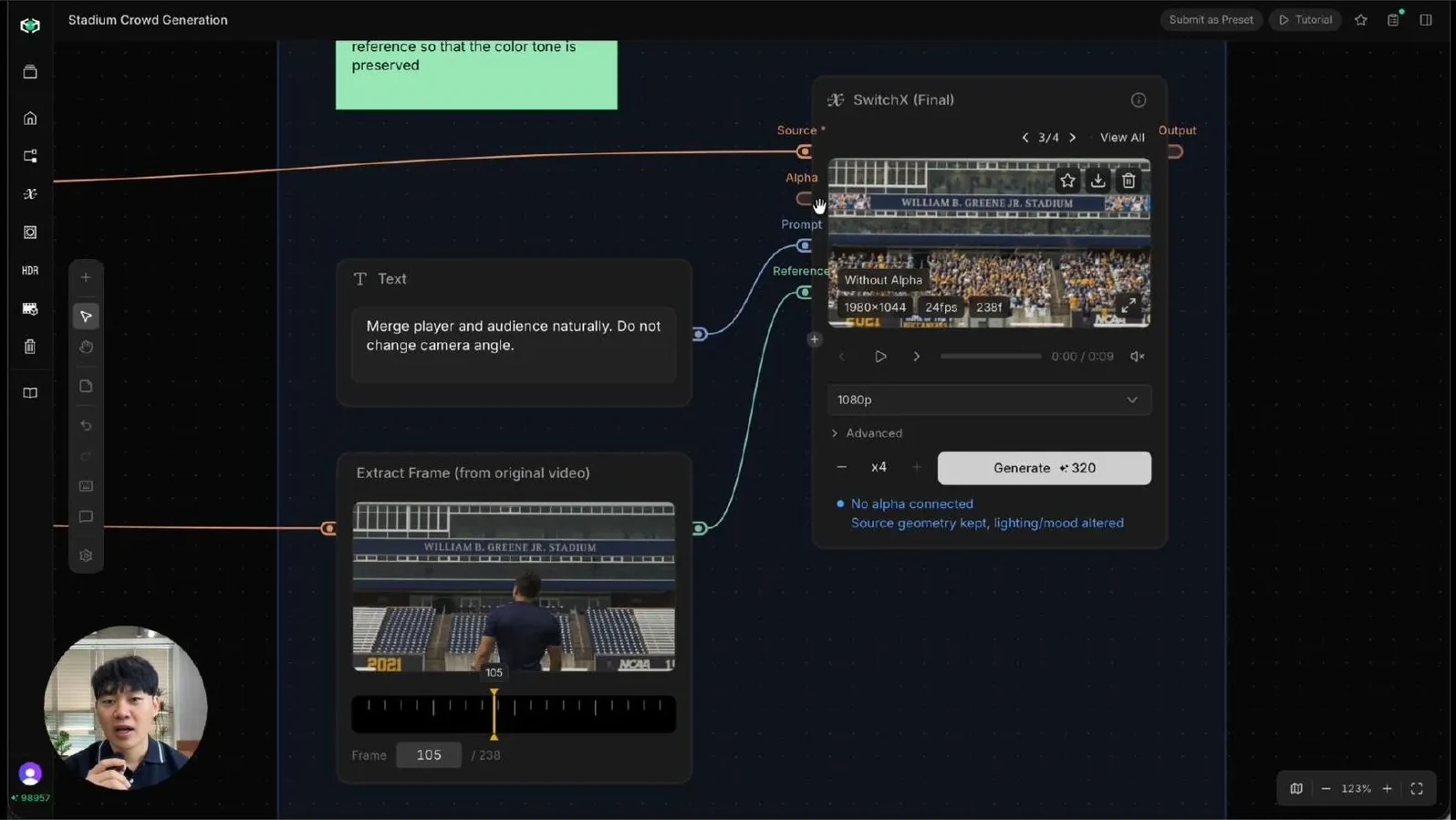
Without an alpha mask, SwitchX preserves everything in the frame and focuses on relighting and recoloring the image. This behaves similarly to Fill Mode in the dedicated SwitchX tab, allowing the generated crowd and original player to inherit the color and tone of the source footage.
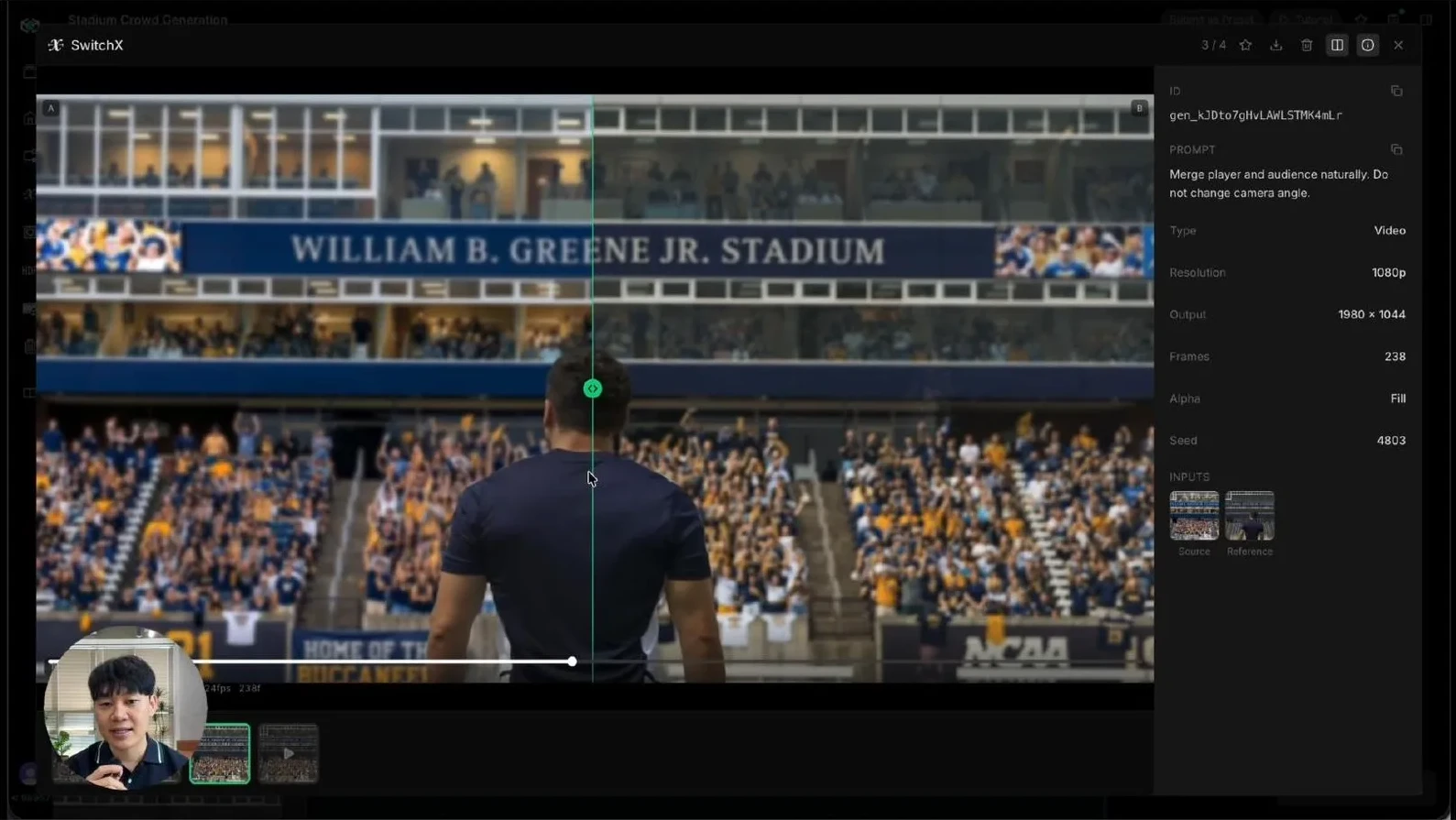
The result is a crowd-filled stadium that feels naturally integrated into the original scene, rather than added in post-production.
Why this workflow matters
Crowd scenes have historically been one of the most resource-intensive elements of sports, concerts, and large-scale event productions.
Canvas offers a different approach. By combining generative AI with masking, compositing, and color matching, we can dramatically increase the perceived scale of a scene while maintaining creative control over the final image.
Rather than replacing traditional VFX techniques, this workflow combines generative tools with established post-production practices to create results that remain grounded in the original footage.
For filmmakers, commercial producers, and VFX artists, it provides a practical way to create larger, more cinematic scenes without expanding the production footprint.
Credits usage breakdown
Crowd VFX
- Video Matte = 8 Credits
- Image Generator = 4 Credits
Video Generator
- Seedance = 189 Credits
- Happy Horse = 100 Credits
- Kling 3 = 60 Credits
Final Composite
- SwitchX = 80 Credits
Total
- 441 Credits = $14.7